How to host Elden Squares Bingo
This is a short introduction about how to set up an Elden Squares Bingo match.
Prerequisites
To host an Elden Squares Bingo you first need the same software as you need for playing.
The Squares
Additionally you will need the Elden Squares squares to be able to play a match of Elden Squares.
Download the squares JSON here.
In case your browser opens the file in plain text just right-click into it and click "Save as..." or press CTRL + S on your keyboard. Make sure to save the file as a .json file format!
Setting up an Elden Squares lobby
When you are ready to set up a lobby make sure that the Elden Ring game is closed.
Start Elden Bingo
Start the EldenBingo.exe of the Elden Bingo application.
Create a Lobby
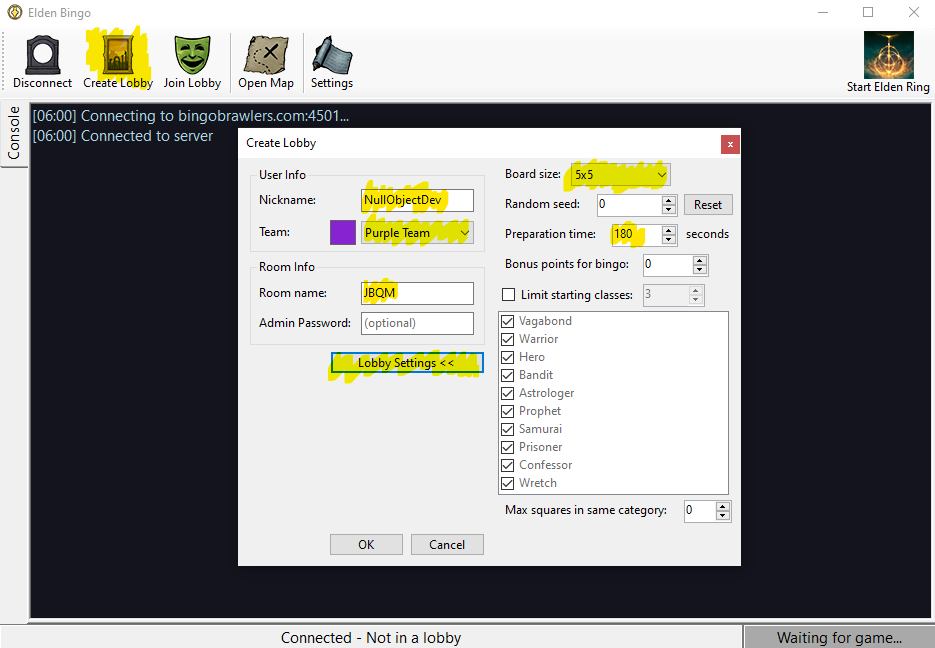
Click on Create Lobby at the top left of the application.
Enter a nickname, choose a team colour and enter a room name. For official play make sure the board size is 5x5 and the preparation time is 180 seconds within the lobby settings. Then press OK.
Upload the squares and randomize a new board
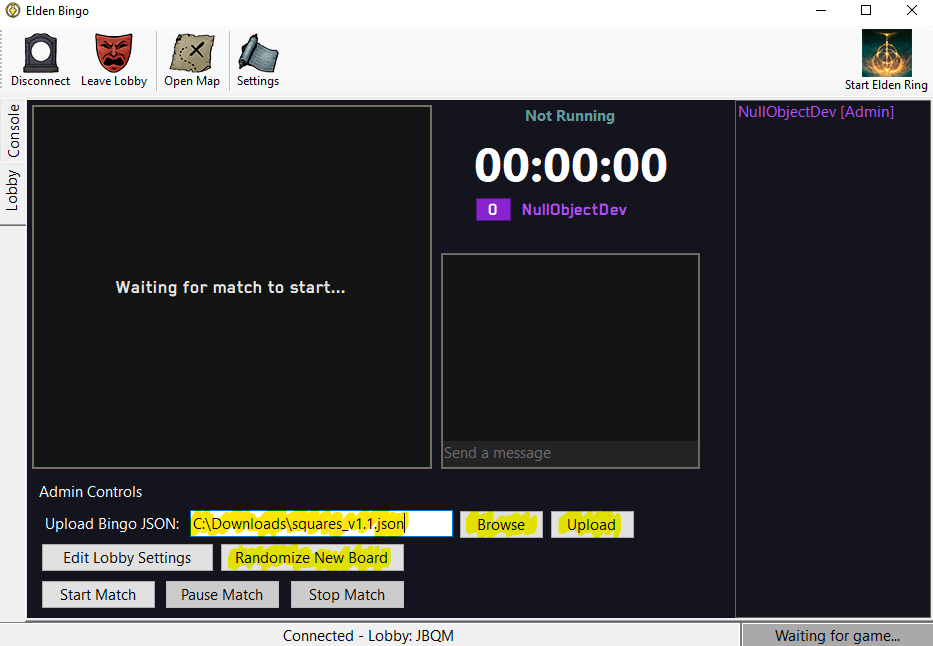
Once you have opened a lobby click Browse, select the Elden Squares squares.json and click Upload.
Afterwards click Randomize New Board a couple of times to ensure it is truly random.
Use the Equipment Randomizer
Start the ER Equipment Randomizer.exe of the equipment randomizer application.
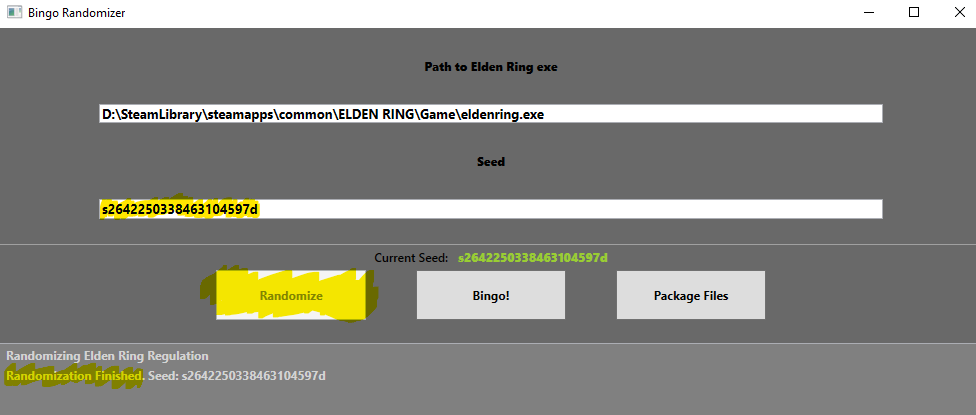
Delete the current seed in the Seed field.
Then click on Randomize and wait for the randomization to finish.
Share the Lobby Room Name and the Seed
If everything above has been completed, be sure to share your Randomizer Seed and Room Name with your opponent and potential spectators.
Start the game via the Equipment Randomizer
When everything is said and done just click on Bingo! in the Equipment Randomizer to start the game.
Start the Bingo match
Once both players have loaded into the character creation for a new game just click on the Start Match button in the Elden Bingo application.